ok-script-app
English | 中文
ok-script-app is a Python automation project template built on ok-script. It includes a runnable GUI app, task examples, configuration widget examples, OCR and template matching examples, tests, localization files, and packaging configuration for native Windows games, Android emulators, and browser games.
This repository is not a finished automation tool for a specific game. It is a starter project and feature demo for building your own ok-script application.
Demo
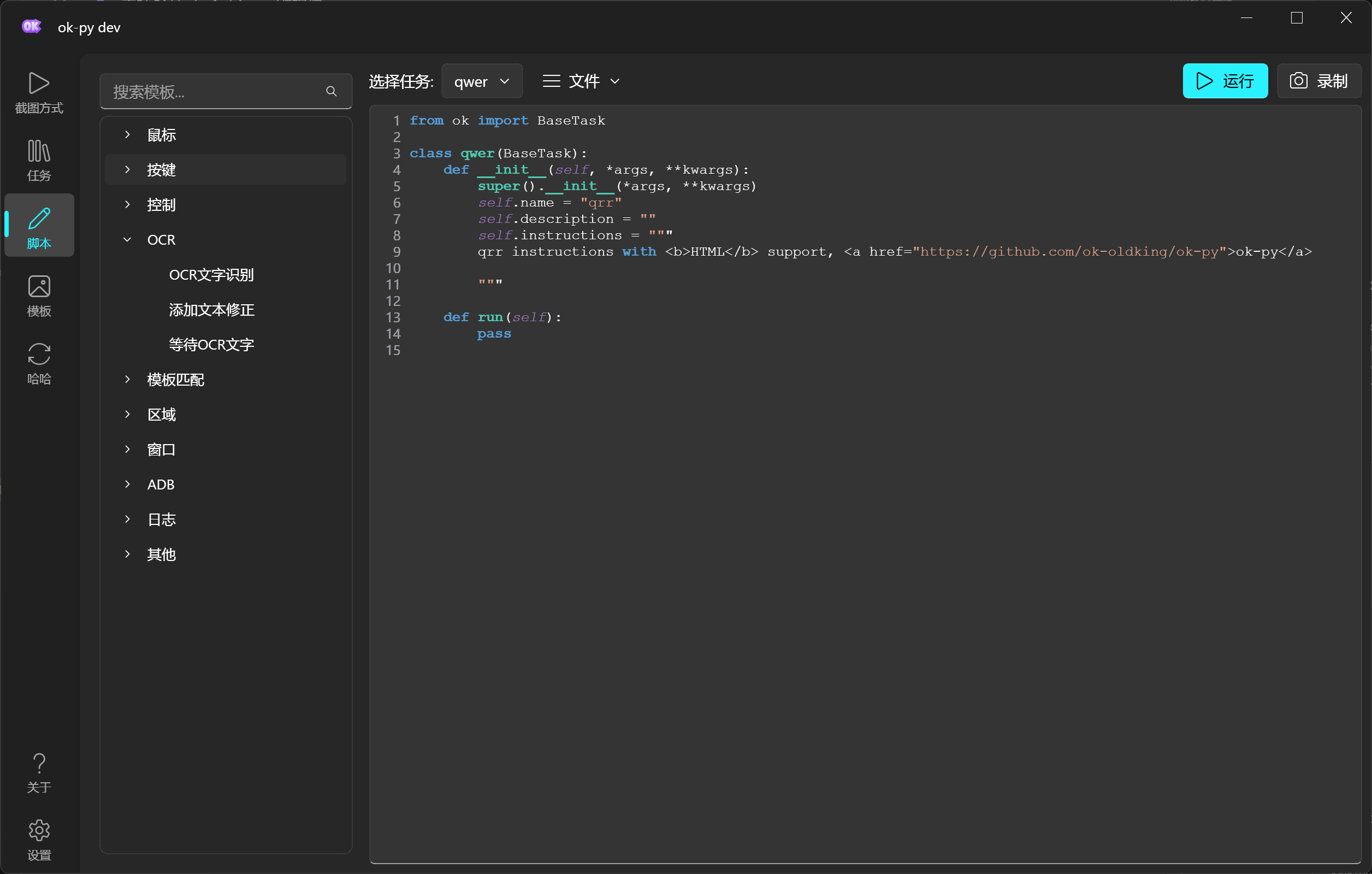
API list and script recording

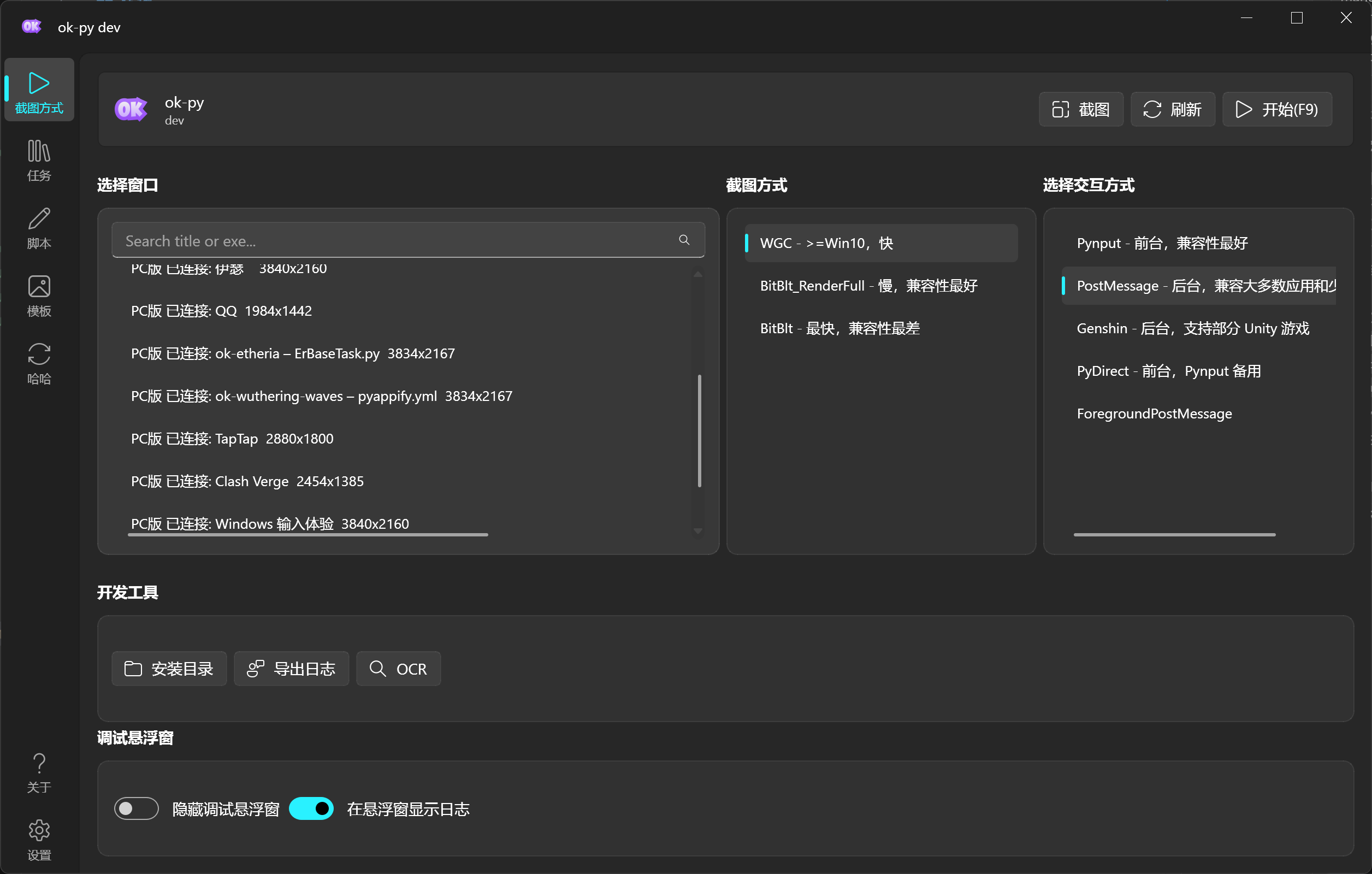
Capture and interaction methods

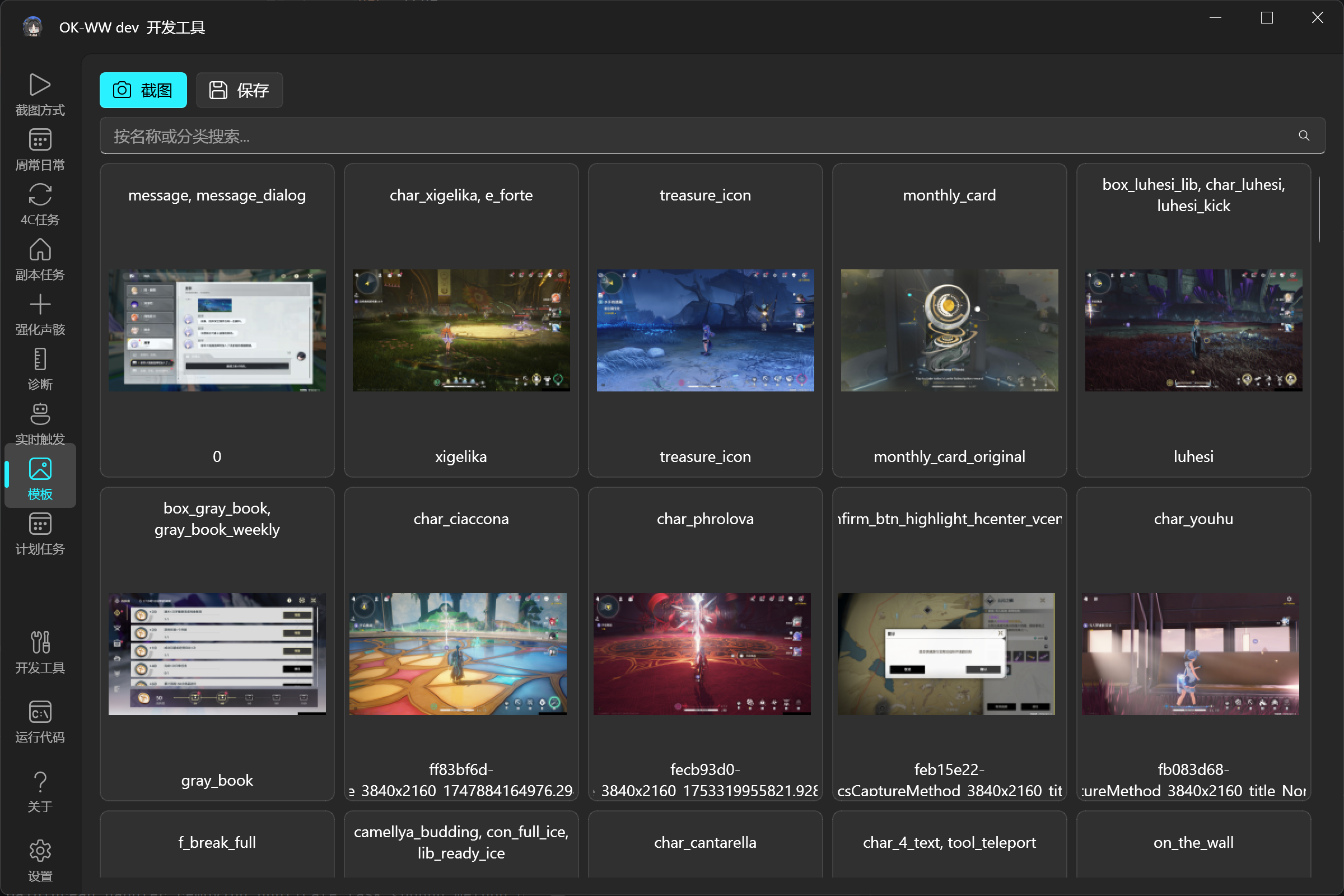
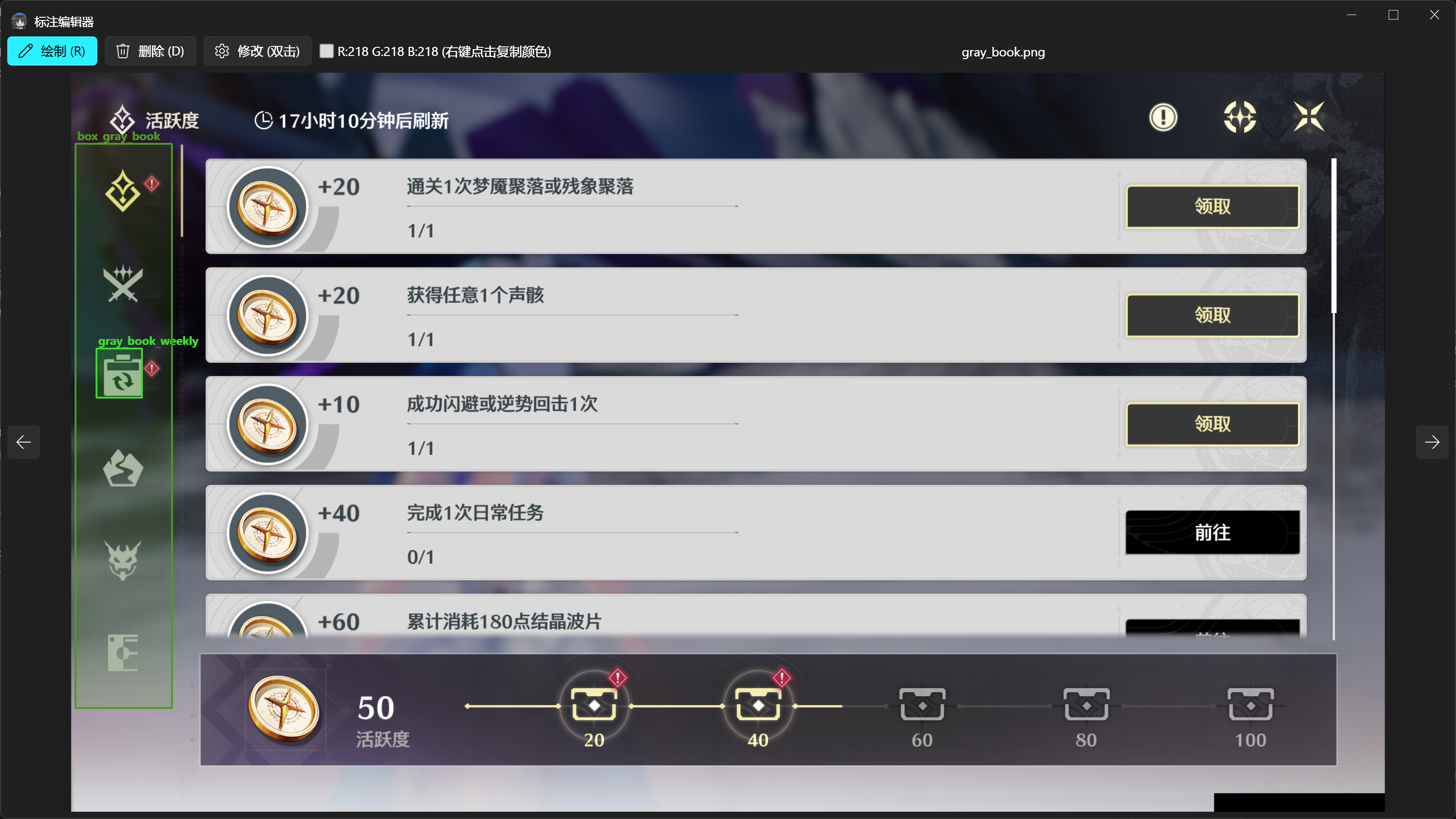
Annotation management and template matching

What Is Included
- A runnable ok-script GUI application entry point.
MyOneTimeTask, a sample task that demonstrates common task APIs and config widgets.- Config widget examples: drop-down, boolean, integer, float, string, text edit, list, multi-selection, file selector, folder selector, global config, and button groups.
- OCR, relative-region OCR, and template matching examples.
- A
ConfigOptionglobal configuration example. TaskTestCaseautomated test examples.- i18n
.pofiles and compiled.mofiles. pyappify.ymland GitHub Actions packaging/release configuration.
Quick Start
1. Create a Repository From the Template
Click Use this template on GitHub, create your own repository, and clone it:
git clone https://github.com/<your-github-name>/<your-repository>.git
cd <your-repository>
After cloning, choose either initialization path:
- Use an AI coding tool (recommended): In Codex, enter
Use $initialize-ok-script-app to initialize this repository.With another AI coding tool, ask it to read.agents/skills/initialize-ok-script-app/SKILL.mdfirst. The initializer asks for the game name, target platform, Windows executable, Android package or browser URL, repository URLs, icons, and first task before changing files. - Initialize manually: Continue with the steps below.
2. Install Python 3.12 and Create a Virtual Environment
Install Python 3.12.10, the last full Python 3.12 maintenance release with Windows installers, then run these commands in the repository:
py -3.12 -m venv .venv
.\.venv\Scripts\Activate.ps1
python -m pip install --upgrade pip
python -m pip install -r requirements.txt --upgrade
Administrator privileges are normally unnecessary. If the target game runs as administrator, launch the automation app with the same privilege level or capture and input may not work.
3. Adapt src/config.py to the Game
At minimum, review and update:
gui_title: the application window title.windows: executable names, window class, interaction methods, and capture methods for a native Windows game.adb.packages: package names for a game running on an emulator or Android device.browser: URL, display name, and browser resolution for a browser game.supported_resolution: supported aspect ratio and minimum resolution.links: project, support, and community links.
Configure at least one of windows, adb, or browser. A project may support multiple target types at the same time. A browser configuration example is included in src/config.py. Browser targets also require playwright; add it to requirements.in and the locked requirements.txt so local runs and GitHub builds include it. If window or device information is unknown, start in Debug mode and identify it there.
4. Replace the Application Icons
Replace icons/icon.png and icons/icon.ico with your own icons. Keeping these filenames avoids configuration changes. If you rename them, also update src/config.py and pyappify.yml.
5. Configure the Update Repository
Update each profile's name and git_url in pyappify.yml:
- For production releases, point
git_urlto a separate lightweight update repository. - During early testing, it can point directly to the source repository created in step 1.
- When using a separate update repository, also change the sync targets in
.github/workflows/build.ymland configure the required GitHub Actions secrets. Remove template-specific CNB or MirrorChyan steps that you do not use.
6. Create and Register the First Task
Create a task class under src/tasks, then register it in onetime_tasks or trigger_tasks in src/config.py:
'onetime_tasks': [
["src.tasks.MyFirstTask", "MyFirstTask"],
["ok", "DiagnosisTask"],
],
One-time tasks inherit from BaseTask; background trigger tasks inherit from TriggerTask. Start from src/tasks/MyOneTimeTask.py, or ask an AI tool to use $ok-script-tasks and $ok-script-codegen.
Start in Debug mode to verify the configuration and task:
python main_debug.py
Run tests:
python -m unittest tests.TestMain
7. Push a Tag to Build the exe
Before pushing a tag, adapt .github/workflows/build.yml to the project. Update the repository sync targets, installer names, Release download links, Git identity, and required secrets.
- With MirrorChyan: Keep and update
.github/workflows/mirrorchyan_uploading.ymland.github/workflows/mirrorchyan_release_note.yml. Replace project-specific values such asowner,repo,mirrorchyan_rid, and the installer filename. Keep the steps inbuild.ymlthat dispatch these workflows, and configure theMirrorChyanUploadTokenrepository secret. - Without MirrorChyan: Delete both MirrorChyan workflow files and remove the
Trigger MirrorChyanUploadingstep frombuild.yml.
After configuring the workflows, commit and push the code, then create a version tag matching the v* workflow rule:
git add .
git commit -m "Initialize project"
git push origin HEAD
git tag v0.1.0
git push origin v0.1.0
GitHub Actions runs the tests, packages the exe, and creates the matching GitHub Release. Before the first release, check .github/workflows again for template repository URLs, template project names, or secrets that have not been configured.
Project Layout
src/tasks Sample task classes
src/config.py ok-script app configuration
src/ui Custom UI tab example
tests Automated tests
assets Template matching assets and COCO annotations
docs/images Demo images used by the README
i18n Localization files
icons App icons
.agents/skills AI initialization, task, i18n, and release skills
main.py Normal entry point
main_debug.py Debug entry point
requirements.in Direct dependency list
requirements.txt Locked dependency set
run_tests.ps1 PowerShell test entry point
pyappify.yml Packaging configuration
deploy.txt File list synced to the update repository during release
.github/workflows Build and release workflows
Developing Tasks
The one-time task example is in src/tasks/MyOneTimeTask.py; the background trigger example is in src/tasks/MyTriggerTask.py. Start there to:
- Add default task settings in
default_config. - Choose config widget types in
config_type. - Write automation logic in
run(). - Use
self.ocr()for text recognition. - Use
self.find_one()orself.find_feature()for template matching. - Use
self.info_set()to show task state in the UI. - Use
self.log_info(..., notify=True)to send notifications.
With custom tasks enabled, you can also create and edit task scripts from the GUI.
Release Files
.github/workflows/build.yml: Watchesv*tags, runs tests, syncs update files, packages the app, and creates a GitHub Release.pyappify.yml: Defines the app name, entry point, icon, Python version, and update repositories.deploy.txt: Lists files copied to a dedicated update repository..github/workflows/mirrorchyan_*.yml: Optional MirrorChyan upload and release-note workflows; delete them as described in Quick Start step 7 when MirrorChyan is not used.
ok-script Documentation (Chinese)
Community
- QQ user group:
1097603920 - QQ developer group:
938132715 - Discord